
Windows 8 is a rebirth, a "reimagining" of Windows and the entire Microsoft brand. It's also the single riskiest project that Microsoft has ever embarked upon — a bet from Redmond that users can adapt to a new way of computing. With mobile alternatives from Google and Apple eating into sales of traditional PCs, Microsoft needed to act quickly to protect its Windows revenue. A short testing phase of under a year from Developer Preview to a finished product in stores shows that Microsoft is serious this time around. The result? An entirely new Windows user interface designed for touch and a new generation of Windows apps. This isn't the Windows you're familiar with, but is that a good thing?
 The basics
The most striking changes to Microsoft's new operating system are evident as soon as you first switch on a Windows 8 PC. The boot process is surprisingly fast for Windows: gone are the days of staring at an ugly splash screen or waiting for Windows to apply computer settings before you can log in and progress with your day. In fact, the boot process is so fast on new hardware that you barely see the redesigned Windows logo that greets you ahead of an entirely new OS.
There are a variety of ways to purchase Windows 8. Typically, it will be available pre-installed on machines from stores and online outlets, but anyone with an older system running XP, Vista, or Windows 7 can also upgrade for $39.99. Microsoft is using an online installer to let users check compatibility with their systems and upgrade. If you're setting up Windows 8 for the first time you'll be greeted with some familiar, but simplified, options. One of the first choices is how you want to sign in to a Windows 8 PC. A Microsoft account (formerly Windows Live ID) acts as a gateway for synchronizing settings, like your browsing history or appearance preferences, across whatever Windows 8 PCs you use. It's also used to provide access to Microsoft services like SkyDrive, Xbox Music, and the Windows Store. You have the option to create a local account, but Microsoft encourages users to enter their email address or sign up online.
For every new account created on a Windows 8 PC, Microsoft triggers a tutorial video that is designed to teach users how to navigate around the OS. The video runs for around 30 seconds in total, but will loop based on the amount of time it takes to configure an account initially. "Swipe in from any edge," says Microsoft, followed by "move your mouse into any corner." It's the first taste of a new way to use Windows, with a redesigned Start button and Charms. It also prepares you for the shock you're about to experience.
Windows 8 UI, Charms, and navigation
visual elements from Microsoft's Windows Phone design, the Start screen is the first thing you'll experience when you log in. There's no Start button, no desktop — just rows of colorful, constantly changing tiles. The interface can be customized with backgrounds and colors for those wishing to dig deeper. If you've configured a Microsoft account that uses Outlook.com or Hotmail, then you'll notice that email, calendar, and contacts will automatically appear. If your Microsoft account is linked to Facebook, your Facebook contacts will also appear in the People app and its associated tile. Immediately, this unfamiliar interface already looks like it's customized to you, with your friends' faces ticking away on the People Live Tile and photos you've stored on SkyDrive or Facebook showing up automatically on the associated Live Tile.
Navigating this new user interface is perhaps the most controversial aspect to Windows 8. There's a steep learning curve here, from navigation to basic tasks like turning off your PC. If you're using Windows 8 on a touchscreen device, swiping from the right will reveal the new Charms, a set of five icons that surface the most common tasks in Windows 8. (The odd naming signifies the types of iconography you’d find on a charm bracelet.) The Charms also reveal important information such as the time and date, network status, and battery levels. Unlike previous versions of Windows, the time and date are not displayed on the Start screen or while you use of any Windows 8-style applications — this can be incredibly frustrating if you spend a lot of time in the new Windows 8 UI.
The Search charm is context-aware, meaning you can use it to search while you’re in an app or to trigger searches across files and settings. A Share charm acts as a way to pass information from one app to another — sharing a URL to the Mail app for example, but it formats an email with images and a subject rather than just copying and pasting the URL. Devices is fairly self explanatory, offering a basic look at devices you can send content to — such as a printer or a second screen. The Settings charm is one of the more confusing aspects to Windows 8. Like all other Charms, it’s context-aware, meaning that you’ll use it to access settings in every app. It also works as an entry point to quick system-wide settings like volume, brightness, network, power, and notifications. I say it’s confusing because until you get used to using the Charms, it’s often easy to forget that an app has multiple places for settings, with some available visually within the app and others available from the Charms. Microsoft’s approach here is understandable, but it’s another learning curve that users need to be aware of. The final Charm is the replacement for the traditional Windows Start button, with a redesigned flag for the Start Charm.
 Charms can also be accessed via mouse or keyboard.

Microsoft has created hot corners for all four edges of Windows 8, with the Charms appearing when you hover over the bottom right or top right corners. This tricky approach is often frustrating and fiddly, especially on a desktop machine with multiple monitors. Thankfully, Microsoft and other accessory makers are creating a number of touch-based mice and keyboards that include gestures to trigger the Charms and other aspects to Windows 8. This helps ease the pain on a desktop, and laptop users with modern trackpads can use similar gestures to activate the Charms. Unfortunately, if you’re upgrading to Windows 8 from older hardware, or you don’t have a trackpad or touch mouse then this will either frustrate you or you’ll get used to it in time. There are various keyboard shortcuts also available that help here too.
Another aspect to navigation is a new touch- and mouse-based Switcher. Making use of the top left and bottom left touch corners in Windows 8, Switcher works as a basic application switcher. Touch users can swipe from the left and snap back to reveal Switcher. While it’s fairly limited, you can use it to close Windows 8-style apps or snap them to the left and right. There’s also an option to just swipe in the most recently used apps.
Windows 8-style apps and the Windows Store
The biggest change in Windows 8 facilitates a new breed of apps. Known previously as Metro style apps, the new Windows 8-style apps are not compatible with previous versions of Windows and are available in a new Windows Store that Microsoft is curating. They are designed to be touch-friendly and full-screen, and they represent Microsoft’s riskiest bet in Windows 8. For Windows 8 to truly succeed on tablets, laptops, and desktop PCs, it needs developers to create functional and good-looking apps that work across a variety of display and input types.
If you’re upgrading from an older version of Windows, these new apps are certainly a fresh approach. The Windows Store offers a variety of games and apps, but with only 5,000 apps available the selection is rather limited right now. Microsoft has built a number of apps that are available out of the box, and some are quite good — like Internet Explorer 10, Music, and Xbox. Thanks to the new Windows 8-style apps, Internet Explorer runs full screen and has been redesigned as a touch version. Navigation is simple, with a large address bar and tabs view that both disappear as you navigate a page. You can also flick backwards and forwards between web pages on a touchscreen. Microsoft’s Internet Explorer team should be commended here: the performance is impressive, and the ability to sync favorites and history across all of your Windows 8 PCs is a truly essential feature.
Microsoft is opting to support Adobe Flash, but only in limited cases. Only sites that are on the Compatibility View list will run Flash, but that does include YouTube and other popular video sharing sites like Vimeo. This is particularly useful for tablet use, since rival offerings like the iPad have shunned the use of Flash. Most web developers are moving towards HTML5, which Internet Explorer 10 supports, but for the few big names that require Flash this is a differentiator. Microsoft has also enabled Do Not Track by default in IE10. This controversial change means data collection on web browsing habits is private by default. After years of shipping subpar browsers, Microsoft is heading in the right direction with Internet Explorer 10.
The Music and Video apps mark a switch in direction for Microsoft. Built by the company’s Xbox team, they provide access to the entertainment aspects of Windows 8. Music includes free, ad-supported Xbox Music streaming — available in 15 markets initially. Microsoft has a catalog of 30 million tracks worldwide, and offers a subscription service without advertising for $9.99 per month which will also work across Xbox and Windows Phone 8. The free ad-supported streaming is only available on Windows 8 (and Windows RT). It works straight out of the box with a Microsoft account, and if you opt for a subscription then any music you purchase in Xbox Music will be available across devices. Xbox Music will match your existing songs and make them available in the cloud for other devices to use. Not all songs match fully, but I tested a variety of MP3s and most matched automatically or via a manual search method.
Coupled with this, the SmartGlass app also allows you to use a Windows 8 device as a remote control to play Xbox Music content on an Xbox console or simply navigate apps. The implementation is simply stunning. If you have existing music and videos you can simply stream them to an Xbox console using the devices Charm. It’s as useful as Apple’s AirPlay system, but it can also be used to control Internet Explorer on Xbox and other apps. A virtual keyboard on the Windows 8 SmartGlass app makes Internet Explorer on Xbox a lot more useful than controller navigation, and I expect this keyboard will extend to other Xbox apps soon.
An Xbox Games app also provides access to the Xbox Live system, where games that support Windows 8’s implementation are listed and achievements recorded. Unfortunately, there are no Windows Phone games in Windows 8. Unlike iOS, which shares common apps between iPhone and iPad, Microsoft's upcoming Windows Phone 8 operating system is only just beginning to share the core parts of Windows 8. The future for this integration looks bright —you should be able to play games across Xbox, PC, and phone — but it's not ready just yet and that's disappointing from a gaming perspective. The Xbox Live integration is solid in Windows 8 despite this. SmartGlass works in combination with the Xbox games app to allow you to launch Xbox 360 games on the console from a Windows 8 device, it will also provide information about the game you're playing on the Xbox 360 — including progress and achievements. The focus on Xbox in Windows 8 is strong and after promises of three screens and a cloud, Microsoft is finally starting to deliver.
In terms of highlights for Microsoft’s own Windows 8-style apps, this is where it ends. Some of the other built-in Windows 8-style apps are significantly lacking functionality. The Mail app includes basic email functions but little else. A conversation view is functional, but on occasions it bundles the wrong email threads together. The Photos app provides a great viewing experience, but editing is rather limited. Crop and rotation features are present, but red eye reduction and other color / tone adjustments are missing. The Messaging app provides the most basic way to use Windows Live Messenger or Facebook chat, with no option to initiate audio or video calls. This is basic functionality and Microsoft appears to have rushed some of these apps out of the door half baked. Microsoft has shown that it updates these apps regularly during the beta phases, so it’s safe to assume the company will continue to do so to address gaps of functionality. For basic tasks, the built-in apps work well — but compared to the experience on rival platforms, they fall short.
Microsoft’s Windows Store represents the acknowledgement of Apple’s success with a curated application store approach. Developers can submit free or paid apps and earn 70 percent of the revenue from sales, a figure that jumps to 80 percent after a paid app makes $25,000. Microsoft wants, and needs, to woo developers here. It’s fair to say that this part of Windows 8 is the most crucial point for the success or failure of the operating system — perhaps even the future of Windows. If developers flock to the store and submit applications that consumers are willing to use then it’s game on for Redmond. If, like Windows Phone, there’s a severe lack of quality applications then the long term health of the Windows ecosystem could be rightfully called into question.
Looking at the Windows Store today it’s clear there are not enough apps here to live exclusively in Microsoft’s new Windows 8-style world. A first batch of 29 Xbox Live games from Microsoft Studios are a good start on the gaming front, with Jetpack Joyride, Angry Birds Space, and Cut the Rope part of some top names that Windows needs. On the application side, the Windows Store is lacking the big names. Searches for Spotify or Rdio bring back a host of apps, but none of them are the official apps you’re looking for. Likewise, searches for Facebook and Twitter — two of the most popular social networks — provide only unofficial apps. On the Twitter side there’s some good alternatives, namely Rowi, MetroTwit, and Tweetro — but it’s a little concerning that Twitter hasn’t invested time itself to build an application for Windows 8.

Microsoft’s Skype team has invested a significant amount of time in building a Windows 8-style app and the result is impressive. It’s a good example of what can be done with Microsoft’s new Windows 8-style apps. However, it’s still questionable whether a desktop user with multiple displays or large 27-inch monitors will want to use applications that run on a single screen (even in a multiple monitor setup) and occupy an incredible amount of space. Microsoft is attempting to appease this type of use with a new Snap feature.
Similar to Aero Snap in Windows 7, Windows 8’s Snap lets you position two apps — desktop or Windows 8-style — alongside each other. Unfortunately, the Snap view is rather limited, with one app occupying a small amount of screen real estate (320 px) and the other taking the majority of the pixels available. A minimum resolution of 1366 x 768 is required for Snap, with a minimum resolution of 1024 x 768 for Windows 8-style apps. Snapping apps into place is an easy affair. Touch users can swipe slowly from the left edge and drag a thumbnail of an app into place. Mouse users can activate the Switcher in the top left hot corner and then drag an app into place. It’s a different approach and works well on tablet devices, allowing you to run two apps at the same time — something that’s not common on Android tablets and nonexistent on Apple’s iPad. If you were looking for the flexibility of the traditional Windows desktop with windowing and 50 / 50 snapping, this simply isn’t available. If you open a Windows 8-style app from the Start screen and then Snap it, you’re left with a blank space on the right or left until you open or Snap another app. Overall, Microsoft needs to improve this usage scenario in future releases, but it’s a differentiator for tablets.

Notifications and lock screen
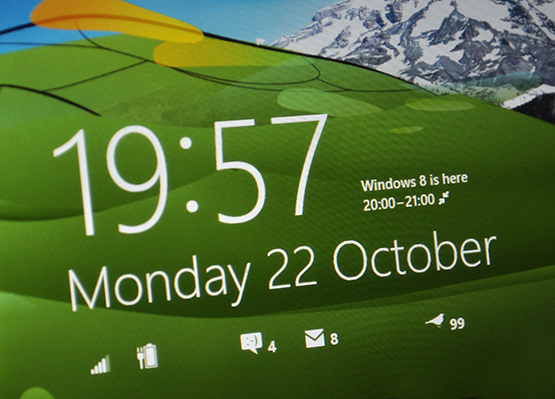
One last radical change for Windows 8 is the changes to the lock screen. A colorful design with mountains and Seattle’s space needle will greet you every time you start a Windows 8 PC (you can customize the picture as well). Microsoft has opted to provide time, date, calendar entries, network status, and battery levels as default, but you can display up to seven lock screen apps that will provide quick status and notifications when a screen is locked. This is particularly useful if you want to glance at a mobile device to see how many calendar appointments you have during the day or the amount of emails in your inbox.
Microsoft has created a built in picture password option that will allow you to sign in by tapping secret areas on a picture of your choice. It works in a similar way to Android’s pattern unlock, but you select three separate touch points to create a password. There’s also options to use a PIN or the traditional password, but the picture password is a unique aspect that works well on touch-enabled devices. System-wide notifications are also present in Windows 8. There’s two types of notifications — app and system. App notifications provide a quick pop-up "toast" that disappears after a few seconds. If you miss this type of notifications, then the Live Tiles should provide the data required as Microsoft has opted not to include a notification center — something I’d expect they may add in later releases. System notifications are triggered for operating system events such as low battery levels or a warning from Microsoft’s SmartScreen system — a phishing and malware security filter built into Windows 8. A full-screen notification banner will take over and require input before it’s removed.
Desktop
Once you tap on the Desktop tile or launch an older app from the Start screen, you’re essentially using Windows 7 again, and the desktop mode will feel a lot more familiar. Windows 8's biggest change is certainly the Start screen, but the company has also introduced a set of important desktop enhancements that will please existing Windows users. The Start button removal is the biggest visual change, but there are a variety of ways to trigger this traditional functionality with the hot corners of Windows 8, or by using a gesture-enabled mouse or trackpad. Microsoft’s Aero Glass UI has been removed, replaced with a flattened UI that tends to match a variety of desktop themes and backgrounds. Users who are upgrading will, depending on the previous OS, likely launch most applications into desktop mode.
Windows Explorer is also improved and renamed, now referred to as File Explorer in Windows 8. Microsoft has added the ribbon interface to File Explorer, which is collapsed by default. Although it takes up a significant amount of space when enabled, it helps surface a number of common file management scenarios and certainly speeds up some of these tasks. Microsoft has also brought the up arrow back, something the company attempted to kill off in Windows 7. Microsoft has also improved the move and copy dialogs in File Explorer, a single window lets you pause, cancel, and assess file operations.
An updated Task Manager is simplified in every sense of the word. The default view will list all currently running applications.There’s simply an end task button to kill off unresponsive apps — a common use for Task Manager. A secondary view provides even greater information, with performance metrics and app history throughout a number of detailed tabs.
The Windows 8 desktop also provides access to a new File History option, Storage Spaces, and restore or reset options. File History, similar to OS X’s Time Machine, is an upgrade of the Previous Versions feature that lets you quickly restore folders or files from a backup. Storage Spaces lets Windows 8 users group together physical disks into a larger RAID-like storage pool for increased resiliency in the case of a physical failure. To Windows 8, virtual disks look like regular physical disks, and users can partition, format, and copy data to the drive much like traditional storage. Windows 8 also includes restore and reset options, allowing users to refresh a PC while keeping documents, accounts, personal settings, and Windows Store apps — but returning Windows to its original state.
Another important improvement in Windows 8 desktop mode is Microsoft’s multiple monitor support. The company has struggled to provide adequate multiple monitor support in previous Windows versions, leaving it up to graphics card vendors to supply additional functionality with drivers. Not everything is improved here, but basics like different desktop backgrounds on each monitor are now supported. You can now span a single picture across multiple monitors. Taskbar options are greatly improved, with the ability to display the taskbar on all displays and options to show buttons on all taskbars or individual ones where the window is open and the main taskbar resides. The combination of the Windows 8 Start screen and multiple monitors isn’t ideal though. Windows 8-style apps can only be run on one monitor and although it’s easier to switch them across, launching the Start screen is a frustrating experience by mouse alone across multiple monitors.

Thankfully the traditional keyboard shortcuts still work, so power users can run Windows 8 on a desktop in a similar way to Windows 7. A number of third party apps are also available to reproduce the Windows 7 menu, but it’s not entirely necessary if you get used to the new Windows 8 Start screen. Microsoft has also added a power user menu to the Start screen tile that appears in the lower left in desktop mode. If you right click on it there’s shortcuts to Device Manager, Command Prompt, and a whole host of other important system tasks.
Windows 8 vs. RT

Despite this being a Windows 8 review, it’s worth mentioning that Microsoft is also introducing a new version of Windows designed for ARM-based chipsets. Windows RT is based on Windows 8, with the new Windows 8-style user interface, but it will not run traditional desktop applications — an important difference to understand. Any apps built for prior versions of Windows simply won’t run in Windows RT. The desktop remains, but aside from the legacy built-in apps (like Paint or Notepad), the only desktop apps that run are Internet Explorer 10 desktop and Office 2013 RT. Microsoft has also removed the Windows Media Player desktop software in Windows RT in order to promote the built-in Music app.
Other than that, the Windows 8-style UI is identical and Windows RT will run the same Windows 8-style applications as Windows 8. I have previously discussed the confusing choice to keep a desktop mode in an operating system that will primarily ship on tablet hardware, but Microsoft is justifying this with its inclusion of Office 2013 RT. This will be an inevitable source of confusion for consumers once they realise that Surface RT tablets and other Windows RT tablets do not run legacy apps. It’s a confusion Microsoft could prevent with better marketing or the removal of the desktop mode in Windows RT.
 When you are prompted, click the "Save" button and choose a location where the installation file should be stored. We recommend saving the file to the Desktop or your My Documents folder.
Locate the AVG PC TuneUp installation file which was previously downloaded to your computer (it will look like a small speedometer and begin with avg_tuh...) and launch the installation by double-clicking on the file. Previous versions of AVG PC TuneUp will be automatically removed during installation.
If prompted, reboot your computer to complete installation.
When you are prompted, click the "Save" button and choose a location where the installation file should be stored. We recommend saving the file to the Desktop or your My Documents folder.
Locate the AVG PC TuneUp installation file which was previously downloaded to your computer (it will look like a small speedometer and begin with avg_tuh...) and launch the installation by double-clicking on the file. Previous versions of AVG PC TuneUp will be automatically removed during installation.
If prompted, reboot your computer to complete installation.
 The new interface is running AVG PC TuneUp offers a centralized development of all the functions and capabilities of adjustment. The main area of the interface running AVG PC TuneUp is divided into five categories, which are open to you fast and grouped by subject access to the most important functions of AVG PC TuneUp.
Status and recommendations. In the category of state and recommendations you get an overview of the current state of your system and recommendations on how to improve. Right displays the protection status of your system.
Optimization of the system. Under "System Optimization" can disable or remove unwanted programs and clean up your system and data.
Freeing up disk space. In the category of "Freeing up disk space" can systematically remove unnecessary data from your system.
Troubleshooting. In the category of "Troubleshooting" you will find simple solutions to potential problems.
Setting up Windows. Configuring Windows category offers you many opportunities to set up your environment to suit your preferences.
Three modes to optimize your PC:
Saving mode. With "mode saves AVG" you can reduce your computer's power consumption by deactivating the screen, hardware components, or unnecessary features.
Standard mode. Standard mode is turned on, if you do not include either "save mode", or "Mode Turbo". Thus, it is a normal mode Windows.
Mode Turbo. With Turbo Mode, you can at any time to further increase the speed of your system and customize it to suit your preferences.
Optimization of the system:
Deactivating programs
Deactivation Autorun
Removing Programs,
Live-configuration optimization
Cleaning the registry
Registry Defragmentation
Removing non-working shortcuts
Quick Start and shutdown
Defragment the hard drive
Freeing up disk space
Clean up your hard drive
Find and delete large amounts of data
Secure data deletion
Troubleshooting
Fixing common problems
Checking the hard drive for errors
Recover deleted files
Display and completion of ongoing processes
Displays information about the system
Configuring Windows
Customizing options and environment
Configure separate settings for Windows
The new interface is running AVG PC TuneUp offers a centralized development of all the functions and capabilities of adjustment. The main area of the interface running AVG PC TuneUp is divided into five categories, which are open to you fast and grouped by subject access to the most important functions of AVG PC TuneUp.
Status and recommendations. In the category of state and recommendations you get an overview of the current state of your system and recommendations on how to improve. Right displays the protection status of your system.
Optimization of the system. Under "System Optimization" can disable or remove unwanted programs and clean up your system and data.
Freeing up disk space. In the category of "Freeing up disk space" can systematically remove unnecessary data from your system.
Troubleshooting. In the category of "Troubleshooting" you will find simple solutions to potential problems.
Setting up Windows. Configuring Windows category offers you many opportunities to set up your environment to suit your preferences.
Three modes to optimize your PC:
Saving mode. With "mode saves AVG" you can reduce your computer's power consumption by deactivating the screen, hardware components, or unnecessary features.
Standard mode. Standard mode is turned on, if you do not include either "save mode", or "Mode Turbo". Thus, it is a normal mode Windows.
Mode Turbo. With Turbo Mode, you can at any time to further increase the speed of your system and customize it to suit your preferences.
Optimization of the system:
Deactivating programs
Deactivation Autorun
Removing Programs,
Live-configuration optimization
Cleaning the registry
Registry Defragmentation
Removing non-working shortcuts
Quick Start and shutdown
Defragment the hard drive
Freeing up disk space
Clean up your hard drive
Find and delete large amounts of data
Secure data deletion
Troubleshooting
Fixing common problems
Checking the hard drive for errors
Recover deleted files
Display and completion of ongoing processes
Displays information about the system
Configuring Windows
Customizing options and environment
Configure separate settings for Windows


 Nero BurningROM 11 - It complements our needs in the burn, Rip, Copy CDs, DVDs and Blu-ray Disc. We can easily create a CD Audio disc, DVD movie disc or Data Discs. In addition we can also create secure discs such as passwords and encryption protection so that our data is safe and protect our privacy.
Best in burning
Preserve your photos, videos, music with the most established burning technology in the industry. The award-winning Nero Burning ROM 11 reliably burns content to CD, DVD and Blu-ray Disc. Easy to use and even easier to share, the robust burning solution comes with powerful security and customizable features that go beyond just burning.
Burn even large files
Save time with Nero DiscSpan for splitting oversized files to the number of required discs in one go. Even mix any media type—music, photos, videos or data—onto one disc.
Rip music CDs
Move your music from CDs to your PC with one-click ripping. Easily create playlists or CD mixes of your favorite tunes right on your computer for playback.
Copy to CD, DVD or Blu-ray Disc
Whether you're copying music or videos, it's easy to make flawless copies of your favorite music CDs and DVD or Blu-ray Disc movies for playback or sharing. Copy music to CDs and even HD movies to Blu-ray Disc*.
* Non copy protected
Create disc images
Use ImageRecorder to create disc image files by simply dragging and dropping to burn disc image formats such as iso, nrg, cue and img. The virtual disc recorder expertly replicates data for easy backup to CDs, DVDs and Blu-ray Discs.
Burn reliably
Expect nothing less than the best with the experts who started it all. Exclusive Nero SecurDisc 3.0 burning helps ensure disc readability and reliability regardless of scratches, age and deterioration so your content remains intact for a long time. SecurDisc Surface Scan offers additional reliability to burned optical discs.
Complete disc security
SecurDisc 3.0 technology is the ultimate in protection for your music, videos and photos burned to discs. Key features include password encryption to allow authorized access, digital signatures for sensitive data and copy protection allow you to fully control the security of your burned discs. Data Integrity Check alerts you to back up your data when discs become aged or altered.
Nero BurningROM 11 - It complements our needs in the burn, Rip, Copy CDs, DVDs and Blu-ray Disc. We can easily create a CD Audio disc, DVD movie disc or Data Discs. In addition we can also create secure discs such as passwords and encryption protection so that our data is safe and protect our privacy.
Best in burning
Preserve your photos, videos, music with the most established burning technology in the industry. The award-winning Nero Burning ROM 11 reliably burns content to CD, DVD and Blu-ray Disc. Easy to use and even easier to share, the robust burning solution comes with powerful security and customizable features that go beyond just burning.
Burn even large files
Save time with Nero DiscSpan for splitting oversized files to the number of required discs in one go. Even mix any media type—music, photos, videos or data—onto one disc.
Rip music CDs
Move your music from CDs to your PC with one-click ripping. Easily create playlists or CD mixes of your favorite tunes right on your computer for playback.
Copy to CD, DVD or Blu-ray Disc
Whether you're copying music or videos, it's easy to make flawless copies of your favorite music CDs and DVD or Blu-ray Disc movies for playback or sharing. Copy music to CDs and even HD movies to Blu-ray Disc*.
* Non copy protected
Create disc images
Use ImageRecorder to create disc image files by simply dragging and dropping to burn disc image formats such as iso, nrg, cue and img. The virtual disc recorder expertly replicates data for easy backup to CDs, DVDs and Blu-ray Discs.
Burn reliably
Expect nothing less than the best with the experts who started it all. Exclusive Nero SecurDisc 3.0 burning helps ensure disc readability and reliability regardless of scratches, age and deterioration so your content remains intact for a long time. SecurDisc Surface Scan offers additional reliability to burned optical discs.
Complete disc security
SecurDisc 3.0 technology is the ultimate in protection for your music, videos and photos burned to discs. Key features include password encryption to allow authorized access, digital signatures for sensitive data and copy protection allow you to fully control the security of your burned discs. Data Integrity Check alerts you to back up your data when discs become aged or altered.


 Steven Sinofsky announcing Window 8’s general available at Microsoft’s annual sales meeting. (Image source: Microsoft)
Having used the Windows 8 Consumer Preview semi-regularly for the last few weeks, I don’t think Microsoft will have any trouble polishing up the RTM release of Windows 8 either. Although there’s a very real possibility that the major interface changes coming in the RTM may throw a wrench in the works, that’s not likely to happen. Anytime a major component of an OS is ripped out, unforeseen problems can and almost always do arise, but since Microsoft is simplifying the design they should be able to pull it off.
Having another couple of months to test and qualify their products prior to the October launch should be beneficial to Microsoft’s hardware partners as well. Although they’ll need to be ready sooner than the actual release date, early indicators are that Asus, Acer, Samsung, Lenovo, and of course Microsoft will all have sleek, highly-refined tablets available in time for Windows 8’s launch. Intel also let slip that 20 of its partners have Windows 8 tablets on the way and that 140 Ultrabook designs, including 40 touch-enabled models, are in the works as well. All of the major players in the desktop and workstation market are primed for Windows 8’s release too; I’ve had my hands on a few gorgeous All-in-one machines (with and without touch) and new desktops refreshed with brand new hardware. It’s obvious Microsoft’s hardware partners (in all categories) are feeling a sense of urgency at the moment and it seems they’re all hoping for a major boost with Windows 8.
I’m not completely sold on Windows 8 for notebooks and desktops just yet, however. It’s a great fit for tablets and touch-enabled AIO machines, but Metro and the other interface tweaks just feel out of place on larger monitors and when using a mouse and keyboard. The more I use the OS, though, the more I can appreciate the performance optimizations that went into it. Even on relatively low-end hardware, Windows 8 boots up and shut down very quickly. Opening applications and navigating through its various menus is also fluid and quick. On high-end hardware, the performance picture gets even better. Using the Consumer Preview on an Intel Core i7-based rig, outfitted with an SSD, discrete graphics, and 16GB of RAM, feels surprisingly fast—faster than the same rig running Windows 7, although benchmark tests don’t show much difference.
Steven Sinofsky announcing Window 8’s general available at Microsoft’s annual sales meeting. (Image source: Microsoft)
Having used the Windows 8 Consumer Preview semi-regularly for the last few weeks, I don’t think Microsoft will have any trouble polishing up the RTM release of Windows 8 either. Although there’s a very real possibility that the major interface changes coming in the RTM may throw a wrench in the works, that’s not likely to happen. Anytime a major component of an OS is ripped out, unforeseen problems can and almost always do arise, but since Microsoft is simplifying the design they should be able to pull it off.
Having another couple of months to test and qualify their products prior to the October launch should be beneficial to Microsoft’s hardware partners as well. Although they’ll need to be ready sooner than the actual release date, early indicators are that Asus, Acer, Samsung, Lenovo, and of course Microsoft will all have sleek, highly-refined tablets available in time for Windows 8’s launch. Intel also let slip that 20 of its partners have Windows 8 tablets on the way and that 140 Ultrabook designs, including 40 touch-enabled models, are in the works as well. All of the major players in the desktop and workstation market are primed for Windows 8’s release too; I’ve had my hands on a few gorgeous All-in-one machines (with and without touch) and new desktops refreshed with brand new hardware. It’s obvious Microsoft’s hardware partners (in all categories) are feeling a sense of urgency at the moment and it seems they’re all hoping for a major boost with Windows 8.
I’m not completely sold on Windows 8 for notebooks and desktops just yet, however. It’s a great fit for tablets and touch-enabled AIO machines, but Metro and the other interface tweaks just feel out of place on larger monitors and when using a mouse and keyboard. The more I use the OS, though, the more I can appreciate the performance optimizations that went into it. Even on relatively low-end hardware, Windows 8 boots up and shut down very quickly. Opening applications and navigating through its various menus is also fluid and quick. On high-end hardware, the performance picture gets even better. Using the Consumer Preview on an Intel Core i7-based rig, outfitted with an SSD, discrete graphics, and 16GB of RAM, feels surprisingly fast—faster than the same rig running Windows 7, although benchmark tests don’t show much difference.
 This is the official preview version of Microsoft's next operating system. Windows 8 is built on the Windows 7 core and introduces a new touch interface, optimized for portable devices. The drastically new look is mainly caused by the new navigation system which replaces the old Start Menu and uses large, colorful tiles and hideaway toolbars that appear when you hover your mouse in the left or right screen corner. The Metro navigation looks to be great on a touchscreen device, but the fact that Microsoft has removed the Start button completely, and forces all users to use Metro in order to access apps and features is a massive flaw, IMHO. I cannot imagine that MS will not reinstate some sort of Start menu, at least as an option, before the final version ships.
If you exit the Metro interface, you will find a familiar Windows 7 desktop with icons, right-click menus and Windows Explorer - alas no Start button. The common settings and configuration dialogs have been simplified and optimized for touch screen access and portable devices. The Control Panel, device manager and other advanced configuration options have mostly remained unchanged from Windows 7. (Check out our screenshots!)
Windows 8 also includes an (App) Store with integrated video and game purchases and downloads, similar to the XBox 360 Guide. Another big change is that you can choose to run Windows 8 under a local account or a Microsoft account, which is required for many of the new media features (music, video, calendar, mail etc.) and integrates your Windows user account with many Microsoft services. (Not so sure about this one.)
The download comes as an ISO disk image that needs to be burned to a DVD. Keep in mind that this is just a preview version and will expire at some point, do not replace you current operating system with this. We recommend installing it on a spare computer or virtual machine.
Product Key: TK8TP-9JN6P-7X7WW-RFFTV-B7QPF
Latest Version
Windows 8 Release Preview vBeta Free Download
This is the official preview version of Microsoft's next operating system. Windows 8 is built on the Windows 7 core and introduces a new touch interface, optimized for portable devices. The drastically new look is mainly caused by the new navigation system which replaces the old Start Menu and uses large, colorful tiles and hideaway toolbars that appear when you hover your mouse in the left or right screen corner. The Metro navigation looks to be great on a touchscreen device, but the fact that Microsoft has removed the Start button completely, and forces all users to use Metro in order to access apps and features is a massive flaw, IMHO. I cannot imagine that MS will not reinstate some sort of Start menu, at least as an option, before the final version ships.
If you exit the Metro interface, you will find a familiar Windows 7 desktop with icons, right-click menus and Windows Explorer - alas no Start button. The common settings and configuration dialogs have been simplified and optimized for touch screen access and portable devices. The Control Panel, device manager and other advanced configuration options have mostly remained unchanged from Windows 7. (Check out our screenshots!)
Windows 8 also includes an (App) Store with integrated video and game purchases and downloads, similar to the XBox 360 Guide. Another big change is that you can choose to run Windows 8 under a local account or a Microsoft account, which is required for many of the new media features (music, video, calendar, mail etc.) and integrates your Windows user account with many Microsoft services. (Not so sure about this one.)
The download comes as an ISO disk image that needs to be burned to a DVD. Keep in mind that this is just a preview version and will expire at some point, do not replace you current operating system with this. We recommend installing it on a spare computer or virtual machine.
Product Key: TK8TP-9JN6P-7X7WW-RFFTV-B7QPF
Latest Version
Windows 8 Release Preview vBeta Free Download


